WorkFlowy.Com

For the past couple weeks, I’ve been playing around with online outliner WorkFlowy.Com and it has gradually become a tool I’m finding indispensable.

On the one hand, WorkFlowy is ridiculously simple. Set up an account, login, and you have an empty screen to start entering parent and child nodes like pretty much every other outlining tool in the world.

On the other hand, WorkFlowy adds a couple of powerful twists. The first is the ability to take any child node and focus in just on that. So while I’m writing this post in WorkFlowy, I see a blank page with just the title of this particular child node at the top, so I can focus just on writing down my thoughts about WorkFlowy.

WorkFlowy also features both # and @ tagging systems. For example, as I am outlining the various steps on a project I am outlining, I can tag any of the action items as #todo and then easily view all of my todo items throughout my huge spreadsheet. Similarly if I had a todo that I needed to assign to someone else, I could add a @name tag. Some people are using WorkFlowy as a full-fledged task manager, but I just want to keep track of tasks to transfer them to Toodledo, which I prefer to use for task management.

Finally, WorkFlowy works very well in Android and iOS browsers. I was on a long trip and spent a couple hours adding and reorganizing items in WorkFlowy on my Android phone. It worked like a charm. This would be awesome on a tablet.

As for the downsides? At the moment WorkFlowy is entirely browser-based. The developer is apparently working on mobile apps for the iOS and Android platforms, but at the moment there is no app version and hence no offline option either.

The export options are also fairly weak. In a popup menu associated with in each node and at the bottom of each page on WorkFlowy is an export option. Selecting the export option will pop up a new windows with the text of either the entire outline or a particular subset of it pre-selected which you can then copy and paste into another application. At the moment, that’s pretty much the extent of WorkFlowy’s export options. Obviously, an export as CSV/email to Gmail/copy to Google Docs, etc. would be extremely useful to have.

That said, WorkFlowy is one of the more useful tools that I’ve run across in a long time — I’ve pretty much started using it for every text-based thing I do, from tracking tasks to writing blog posts like this.

Scansnap S1100 USB-Powered Scanner Review

Since I’m a huge fan of the Fujitsu Scansnap 1100, I should probably get the two things I absolutely hate about it out of the way first.

Fujitsu insists on using its proprietary software for its Scansnap line. That means no scanning directly into applications that are perfectly capable of utilizing TWAIN-based scanners. Rather, you’re stuck using Fujitsu’s proprietary software for your scans.

Fujitsu compounds this idiotic decision by making it impossible to download the software from its website. You can download updates to the software just fine, but if you lose that original installation disc, you’re pretty much screwed — unlike its much friendlier competitors like Epson, you can’t simply pop online and download the software again. I just copy the stupid CD to Dropbox in case I ever need it again for a reinstall.

So, from the software end Fujitsu sucks. Hardware-wise, though, I’ve owned several ScanSnap’s and if you can live with those limitations these are awesome document scanners.

The ScanSnap 1100 is Fujitsu’s portable version that operates entirely off of USB power, and unlike some other USB-powered scanners, the ScanSnap 1100 requires just a single USB cable for power.

Now that limited power supply does mean a couple of other drawbacks that are common in this class of devices. The biggest drawback is that the ScanSnap 1100 only scans a single side of a document at a time. It is fairly easy to flip a document over and scan the reverse side, but if your primary use for this would be scanning lengthy double-sided documents, you’re going to want one of the desktop versions that can do so.

The second drawback is that the scanning speed is relatively slow — 5 to 8 seconds to scan an 8 1/2″ x 11″ piece of paper at highest resolution (I don’t bother with lower resolutions, so I couldn’t tell you how much faster it is if you’re willing to compromise on scanning quality).

Despite all of the above, I absolutely love this scanner. Having a scanner everywhere I am makes it so much easier to keep on top of scanning all of the crappy pieces of paper people insist on giving me.

The ScanSnap 1100 is perfect for receipts, business cards and other paper ephemera.The first couple of weeks I had this, I was able to finally power through the 500 or so receipts I had shoved in a desk drawer. I also used it to scan hundreds of shorter one and two page documents, leaving the longer, double-sided documents for my ScanSnap 1500.

If you will be carrying this with you a lot, I’d recommend purchasing the carrying case that Fujitsu makes for this as well. The case is absurdly expensive at about $40, but it has a cutout on the side so that the scanner can be operated without taking it out of the case.

Silicon Forensics Hard Drive Shipping Case

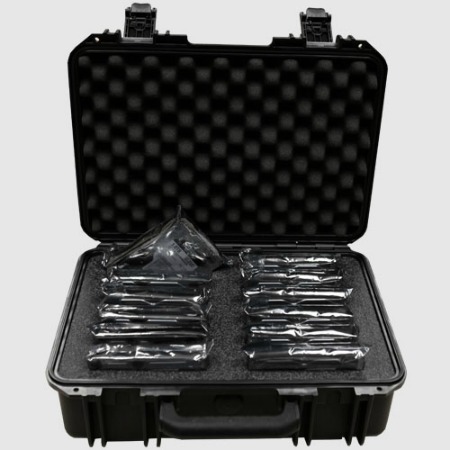
I really like Silicon Fornesics’ hard drive transporter for 3.5″ hard drives, but I’ve got 10-12 hard drives stuck in a locking drawer, and the bulk from 10 or 12 of the hard drive transporters would be a bit much. Enter Silicon Forensics’ Hard Drive Shipping Case:

Silicon Forensics Hard Drive Shipping Case

Holds 12 hard drives in a foam padded case suitable for shipping, if you wanted to — though I just want a nice storage solution for a bunch of loose drives.

This thing goes for $129.99 and weighs 8 lbs. I can’t wait to get one.